Laundromat Square Payment Setup: 2026 Step-by-Step Guide

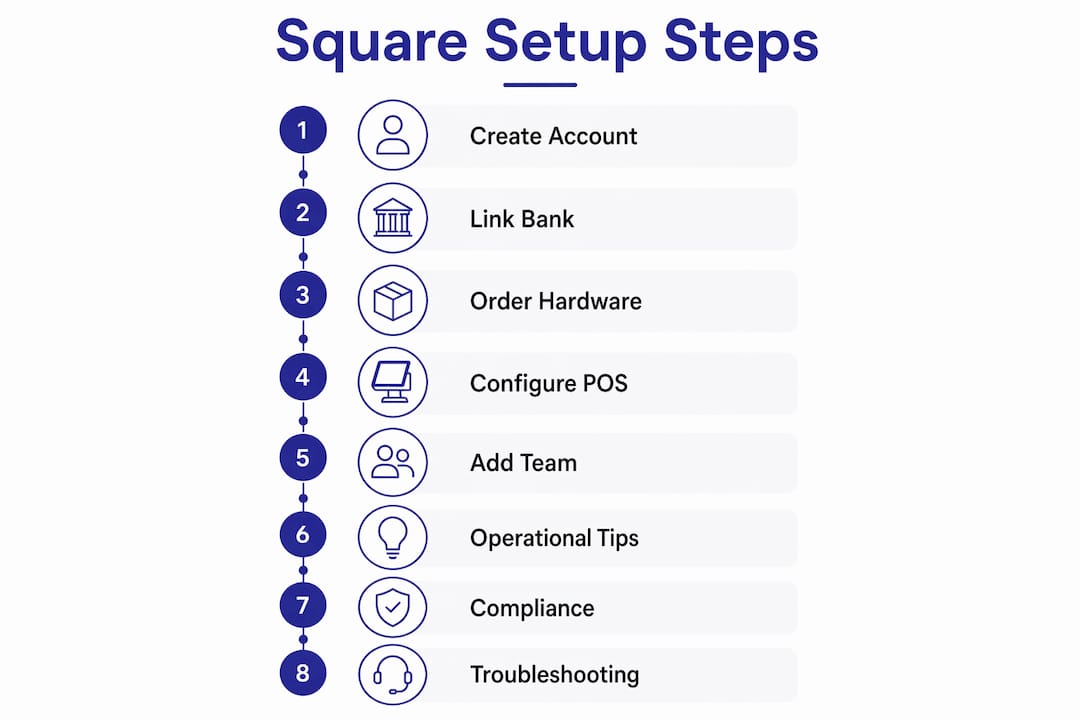
Setting up Square payments for your laundromat comes down to eight core steps: create and verify your account, link your bank, configure your deposit schedule, order and install hardware, build your service catalog, set up your team, and tune your POS for laundry-specific workflows. The initial sign-up takes under 10 minutes, though identity verification can add 1–2 business days before you can process card payments. Here is what the full laundromat square payment setup process looks like end to end:
Core setup steps at a glance:
- Create your Square account and choose your business structure
- Complete identity verification and business onboarding
- Link and verify your U.S. bank account
- Set your transfer and deposit schedule
- Order and configure Square hardware for your counter or kiosk
- Build your laundromat service catalog in Square Point of Sale
- Add team members and configure PIN access for attendants
- Configure open tickets and pay-at-pickup workflows
Laundromat-specific considerations to keep in mind:
- Square has no native wash-cycle scheduling or per-pound pricing, so your item catalog will need workarounds
- Pay-at-pickup order flows require open tickets, which Square POS supports but does not automate
- Processing fees run 2.5% to 3.5% per transaction for laundromats, and small changes in rate can greatly impact margins due to high transaction volume.
1. How to create and register your Square account for a laundromat
Getting the business structure right at sign-up prevents verification delays later. Square asks for this information during onboarding, and mismatches between your legal name and your bank account are the most common reason accounts get flagged.
Step-by-step account creation:
- Go to squareup.com and click “Get Started.”
- Enter your email address and create a password.
- Select your country (United States).
- Enter your full legal name, home address, date of birth, and the last four digits of your Social Security Number.
- Provide your business name, business type (sole proprietorship, LLC, corporation), business address, industry classification, estimated annual revenue, and average transaction amount.
- Submit and wait for the activation confirmation email.
Most laundromat owners register as an LLC or sole proprietorship. Choose whichever matches your actual legal filing. Square’s system flags inconsistencies between your business type and your submitted documents, so use your exact legal business name, not a nickname or a DBA unless that DBA is officially registered.
Pro Tip: Complete the activation form in one sitting. Square enforces a strict 10-minute time limit on the activation form. If you exceed it, the form locks for three days. If you hit an error mid-process, log back in from a desktop browser, not a phone, to resume.
2. How to link and verify your bank account for Square deposits
Before Square sends you a single dollar, you need a verified U.S. bank account on file. This step is non-negotiable under federal banking regulations, and it applies even if you plan to use a Square bank account rather than an external one.
What you need to have ready:
- Your bank account number
- Your routing number
- The account holder name, which must match the legal name on your Square account
Verification steps:
Square may send a small test deposit to confirm the account. You verify that deposit amount inside your Square Dashboard to complete the link. Once confirmed, your account is cleared to receive transfers.
Pro Tip: Use a business checking account, not a personal one, and make sure the account name matches your registered business name exactly. A mismatch between the bank account holder name and your Square business name is one of the most common causes of deposit holds.
After linking, Square defaults to next business day transfers automatically. You can change this schedule at any time inside your Dashboard under “Transfer Options.”
3. How to order, install, and configure Square hardware for your laundromat
Square hardware ranges from a free magstripe reader to a $799 dual-screen Square Register. For a laundromat counter, the right choice depends on your volume and whether you have an attended counter or a self-service kiosk setup.
Hardware options worth knowing:
- Square Reader (free or $49 contactless/chip version): Works plugged into a smartphone or tablet. Good for low-volume counters or a secondary station.
- Square Terminal ($299): A standalone device with a built-in receipt printer. The best fit for a single attended counter where you want everything in one unit.
- Square Register ($799): A dual-screen setup with a customer-facing display. Useful if your attendants handle high ticket volume and you want customers to see their order total.
Installation steps:
- Order hardware at squareup.com/shop.
- Download the Square Point of Sale app on your iOS or Android device.
- Pair your hardware via Bluetooth or USB, following the in-app prompts.
- Enable tap-to-pay in the app settings to accept contactless cards and mobile wallets like Apple Pay and Google Pay.
- Configure receipt options: digital receipts via email or SMS, printed receipts, or both.
Pro Tip: You do not need to wait for hardware to start processing payments. New accounts can process payments immediately via Square’s Virtual Terminal or digital invoices the moment your account is approved. Use this to handle phone orders or pre-paid drop-off pickups while your hardware ships.
4. How to build your laundromat service catalog in Square POS
Square’s item library is where your wash-and-fold pricing, add-ons, and memberships live. The catch: Square has no native per-pound pricing or wash-cycle tracking, so you will need to build workarounds using item quantities and SKUs.
Steps to build your catalog:
- Log into your Square Dashboard and navigate to “Items.”
- Click “Create an Item” and name it (e.g., “Wash & Fold — Per Pound”).
- Set the price per unit. For weight-based pricing, set the unit as “pound” and price accordingly.
- Create variations for service tiers: standard, express, deluxe.
- Add modifier groups for add-ons: detergent type, fabric softener, stain treatment.
- Create separate items for vending sales, memberships, and dry cleaning drop-off.
- Organize items into categories (Wash & Fold, Dry Cleaning, Vending, Memberships) for faster checkout.
Practical tips for laundromat catalogs:
- Use item placeholders for weight-based orders. Create a “Basic Laundry” item and sell it by quantity to represent pounds. It works technically, though it loses reporting granularity compared to purpose-built laundry software.
- Keep your catalog lean. Too many line items slow down attendants at the counter.
- Bundle detergent or dryer sheet sales as add-on modifiers rather than standalone items to speed up checkout.
Square POS supports memberships and recurring items, which is useful if you offer monthly wash-and-fold subscriptions.
5. How to set up team member accounts and PIN login for attendants
Every attendant who touches your POS should have their own account. Shared logins make it impossible to track who processed what, and that matters when a cash discrepancy shows up at end of shift.
Steps to add team members:
- In your Square Dashboard, go to “Team” and click “Create Team Member.”
- Enter the attendant’s name, email, and phone number.
- Assign a role: Cashier, Manager, or a custom role you define.
- Set permissions for each role, controlling what each person can access (refunds, discounts, reports, etc.).
- Enable PIN login so attendants can clock in and switch users at the POS without sharing a password.
Square’s team management lets you configure role-based permissions down to individual features, which is exactly what you need on a busy shop floor where one attendant should not have the same access as a manager.
Pro Tip: Restrict discount and refund permissions to managers only. Attendant-level access to open discounts is one of the most common sources of revenue leakage in laundromats with high staff turnover.
6. Operational tips for using Square POS in laundromat order management
The pay-at-pickup workflow is where Square POS earns its keep for drop-off laundry, but it requires deliberate setup. An open ticket functions as your order placeholder from drop-off to pickup.
How to run a pay-at-pickup workflow:
- When a customer drops off laundry, open a new ticket in Square POS.
- Add the relevant items (wash-and-fold pounds, dry cleaning pieces, add-ons).
- Save the ticket without charging. The order stays open until pickup.
- When the customer returns, pull up the ticket, confirm the final weight or service, and collect payment.
- Accept card, contactless, or mobile wallet at pickup. Square POS handles all three natively.
Operational do’s and don’ts:
- Do use digital receipts via SMS so customers have a record without you printing paper for every transaction.
- Do assign open tickets to specific attendants so accountability is clear.
- Don’t leave tickets open indefinitely. Set a daily review habit to close or flag stale orders.
- Don’t skip the modifier step at drop-off. Capturing add-ons at intake prevents disputes at pickup.
Pro Tip: Square POS supports multiple payment types on a single transaction, which is useful when a customer wants to split between a gift card and a credit card. Enable this in your payment settings before your first busy Saturday.
7. Expert insights on optimizing your laundromat payment setup
Square is a solid starting point, but it was built for retail, not laundry. The gaps show up fast once you add drop-off services, commercial accounts, or multiple locations.
“Generic POS platforms handle basic payments but lack wash-and-fold workflows, per-pound pricing, garment tracking, and laundry-specific reporting. For a store that only offers self-service with no wash-and-fold counter, a generic POS combined with a card payment system on each machine may be sufficient. Any laundromat offering drop-off services, commercial accounts, or delivery will outgrow a generic system quickly.” — Real Clean Group
The fee math is worth running before you commit. Processing fees range from 2.5% to 3.5% per transaction compound significantly across thousands of small payments monthly. A 0.5% difference in rate sounds trivial until you multiply it across a month of $8 wash-and-fold orders.
Where Square falls short for laundromats:
- No native wash-cycle scheduling or washer downtime tracking
- No garment-level order tracking or photo intake
- Attendant and shift workflows require manual processes outside the POS
- Reporting does not break down by washer performance or service type
Where Square works well:
- Fast in-person checkout for memberships, item sales, and add-ons
- Solid receipt handling with digital and printed options
- Free entry tier for self-service-only shops with low complexity
Paid Square plans add payroll integration and email marketing, which helps growing shops. But laundromats scaling to drop-off, delivery, or multiple locations typically benefit from purpose-built laundry management software that handles garment tracking, inter-branch transfers, and order-stage visibility natively. Kansoflow’s laundry-specific POS features address exactly these gaps, with a visual Kanban board, photo intake at the counter, and Stripe/Square payment integration built in.
8. What compliance requirements apply to payment processing in US laundromats?
Payment processing compliance in the US laundromat industry sits at the intersection of federal financial regulations and card network rules. Square handles much of this on your behalf, but you still carry responsibility for your own business practices.
Key compliance areas:
PCI DSS (Payment Card Industry Data Security Standard): Any business that accepts card payments must comply with PCI DSS. Square’s hardware and software are PCI-compliant, and using Square’s hosted payment tools keeps you within that compliance umbrella. Where you can fall out of compliance is if you write down card numbers, store them in spreadsheets, or handle card data outside Square’s system.
Bank Secrecy Act (BSA) and AML rules: Laundromats are cash-intensive businesses, which puts them on the radar for anti-money laundering (AML) scrutiny. If your business handles large cash volumes alongside card payments, maintain clear records of all transactions. Square’s reporting tools generate the transaction logs you need for this.
State sales tax: Most states exempt laundry services from sales tax, but rules vary. Check your state’s Department of Revenue guidance. Square’s tax settings let you apply or exempt tax at the item level, so configure this correctly during catalog setup.
IRS 1099-K reporting: Square issues a 1099-K if your account processes above the federal reporting threshold in a calendar year. Keep your business information current in your Square Dashboard so the form goes to the right entity.
9. How to troubleshoot common hardware and software issues during setup
Most Square setup problems fall into a handful of categories, and nearly all of them have a documented fix.
Account activation issues: If your activation stalls, log into your Square Dashboard from a desktop browser. Square’s troubleshooting process requires desktop access. If identity verification fails, check your email for a “We couldn’t verify your identity” message and follow the link to resubmit your ID and a selfie. Verification holds typically resolve within 1–2 business days.
Hardware not connecting: If your Square Reader or Terminal is not pairing, check that Bluetooth is enabled on your device, the hardware is charged, and you are running the latest version of the Square Point of Sale app. Unpair and re-pair the device if the connection drops repeatedly.
Payment declines: A declined transaction at your counter is usually a card issue, not a Square issue. If multiple cards decline, check your internet connection first. Square requires a live connection to process card payments. Offline mode exists but has limitations.
Item catalog errors: If items are not showing up at the POS, confirm they are marked as “visible” in your Dashboard item settings. Items set to “hidden” or assigned to a different location will not appear at the register.
10. Security best practices for payment processing in laundromats
Laundromats run on high transaction volume and often high staff turnover. Both factors create security exposure if your POS is not configured carefully.
Practical security steps:
- Assign every attendant a unique PIN. Never allow shared login credentials at the POS.
- Restrict refund and discount permissions to manager-level roles only.
- Enable end-of-day cash drawer reports and reconcile them against Square’s transaction log every night.
- Use Square’s two-factor authentication on your Dashboard account to prevent unauthorized access from outside the shop.
- Never write down card numbers or store customer payment data outside Square’s system. Doing so voids your PCI compliance.
- Place your Square Terminal or Reader where customers can see the screen during payment. Visible card readers reduce skimming risk and build customer trust.
For multi-location shops, create separate Square locations in your Dashboard rather than running all transactions through one account. This keeps your reporting clean and limits the blast radius if one location’s credentials are compromised.
11. How to configure your Square transfer and deposit options
After your bank account is linked and verified, Square defaults to next business day transfers. That means money from Monday’s transactions lands in your bank account on Tuesday, assuming no holds.
Your transfer schedule options:
- Next business day (default): Free. Funds from each day’s transactions arrive the following business day.
- Same-day transfers: Available for a fee. Funds processed before a cutoff time arrive the same day.
- Instant transfers: Available for a fee, 24/7 including weekends. Useful if you need cash flow flexibility between business days.
To change your schedule, go to your Square Dashboard, select “Account & Settings,” then “Transfer Options.” You can switch between schedules at any time. For most laundromats, next business day is sufficient. If your shop carries tight margins and relies on daily cash flow to cover supply orders, same-day transfers are worth the fee.
Square also lets you set a minimum transfer amount, which prevents small balances from triggering a transfer every day. Set this to match your actual cash flow rhythm.
Key Takeaways
Setting up Square payments for a laundromat requires eight steps from account creation to operational configuration, with laundry-specific workarounds needed for catalog and order management.
| Point | Details |
|---|---|
| Account activation timing | Basic sign-up takes under 10 minutes; identity verification adds 1–2 business days before card processing is live. |
| Fee math matters | Processing fees from 2.5% to 3.5% per transaction compound significantly across high-volume laundromat transactions. |
| Catalog workarounds required | Square has no native per-pound pricing; use item quantity placeholders to represent weight-based wash-and-fold orders. |
| Team security setup | Assign unique PINs to every attendant and restrict refund permissions to manager roles to prevent revenue leakage. |
| Transfer schedule flexibility | Square defaults to next business day deposits; same-day and instant transfer options are available for a fee. |
When Square is not enough for your laundromat
Square gets you processing payments in a day. What it does not do is track garments, manage inter-branch transfers, or give your attendants a visual order board that shows exactly where every bag is in the wash-fold-ready cycle.
Kansoflow is built specifically for laundromat operators who have outgrown generic POS tools. It pairs natively with Square and Stripe for payment processing while adding the laundry-specific layer that Square cannot provide: a drag-and-drop Kanban board for order stages, photo intake at the counter to eliminate lost-item disputes, Bluetooth scale integration for per-pound pricing, and per-device PIN security fast enough for a busy shop floor. If you run drop-off services, commercial accounts, or more than one location, see what Kansoflow does differently.