Dry Cleaning Receipt Printer Options: A Buyer’s Guide
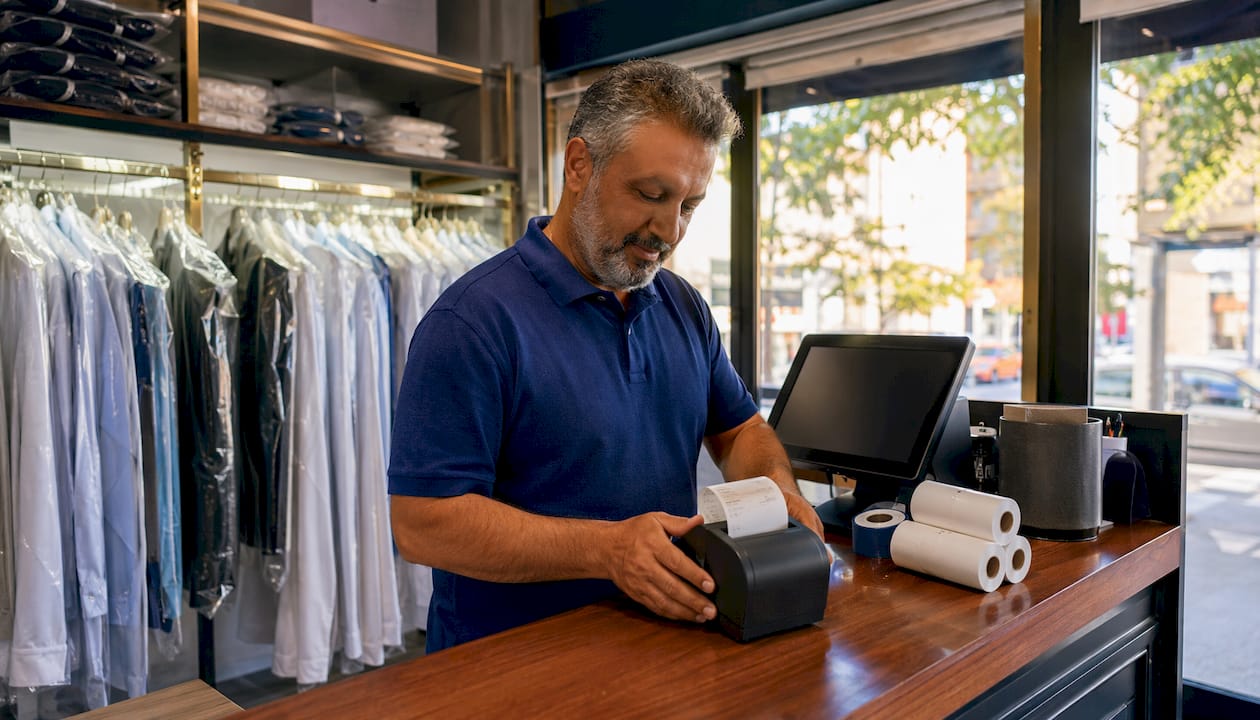
Choose a dual-printer setup: a fast thermal receipt printer at the front counter for customer-facing transactions, plus a solvent-resistant impact or label printer in the production area for garment tags. That combination handles the two completely different jobs your shop demands. Thermal printers are quick, quiet, and cheap to run. But put a thermal tag on a garment going through a solvent press cycle and you’ll find a blank strip of paper where the order number used to be. That’s where Hydrofix boil-proof, wash-resistant media comes in, paired with an impact or specialty label printer using indelible ribbon cassettes. Star Micronics builds hardware explicitly for this workflow, and Kansoflow integrates natively with Star printers to close the loop between your counter and your production floor.
Table of Contents
- ## What are the best dry cleaning receipt printer options?
- ## Which media and consumables actually survive dry cleaning?
- ## Connectivity, drivers, and POS integration: what to check before you buy
- ## Field-tested printer models and what each one is best for
- ## How typical dry-cleaning shop setups actually work
- ## Maintenance and troubleshooting: keep printers running through peak season
- ## Buying checklist: questions to ask vendors before you commit
- ## Why a confirmed POS and printer integration reduces real operational costs
- Key Takeaways
- The part most buyers get wrong
- Kansoflow pairs with the printers your shop already needs
- Useful manufacturer and industry sources to consult before you buy
## What are the best dry cleaning receipt printer options?
The short answer: no single printer does everything well. Thermal printers dominate the front counter because they’re fast, require no ribbons, and produce clean customer receipts. Impact and label printers own the production area because their indelible ink survives solvents, steam, and high-heat pressing. Most shops that try to cut corners with one thermal printer everywhere end up reprinting tags constantly or losing orders entirely.
The three printer families you’ll encounter are thermal direct, impact (dot-matrix), and specialty label/linerless. Here’s how they break down for dry-cleaning work:
- Thermal direct: Prints by applying heat to chemically treated paper. Fast, quiet, no ribbons. The catch is that thermal receipts fade within 3–5 years under heat, sunlight, or solvent exposure. Fine for a customer receipt that lives in a wallet; disastrous for a production tag.
- Impact (dot-matrix): Strikes an inked ribbon against paper. Slower and louder, but the ink is physically embedded. Moisture, solvents, and pressing heat don’t erase it. Required for multipart or carbon-copy forms.
- Label/linerless: Specialty printers that output die-cut or continuous linerless labels at high resolution (up to 300 dpi on devices like the Star Micronics mC-Label2). Can produce scannable barcodes and handle both receipt and tag output from one device.
| Feature | Thermal | Impact | Label/Linerless |
|---|---|---|---|
| Print speed | Fast | Slow–moderate | Moderate–fast |
| Solvent/chemical resistance | Poor | Excellent | Good (with right stock) |
| Consumables | Paper only | Ribbon + paper | Label stock |
| Noise level | Quiet | Loud | Quiet |
| Multipart forms | No | Yes | No |
| Best use | Customer receipts | Permanent garment tags | Tags + receipts combined |
Pro Tip: If your shop processes multipart work orders that go to a subcontractor or alterations partner, impact is the only technology that produces a true carbon copy. Thermal and label printers cannot replicate that.
Pro Tip: Never use a thermal printer in your pressing or finishing area. The ambient heat alone can pre-activate the paper coating and produce blank or partially printed tags before the garment even reaches the press.
## Which media and consumables actually survive dry cleaning?
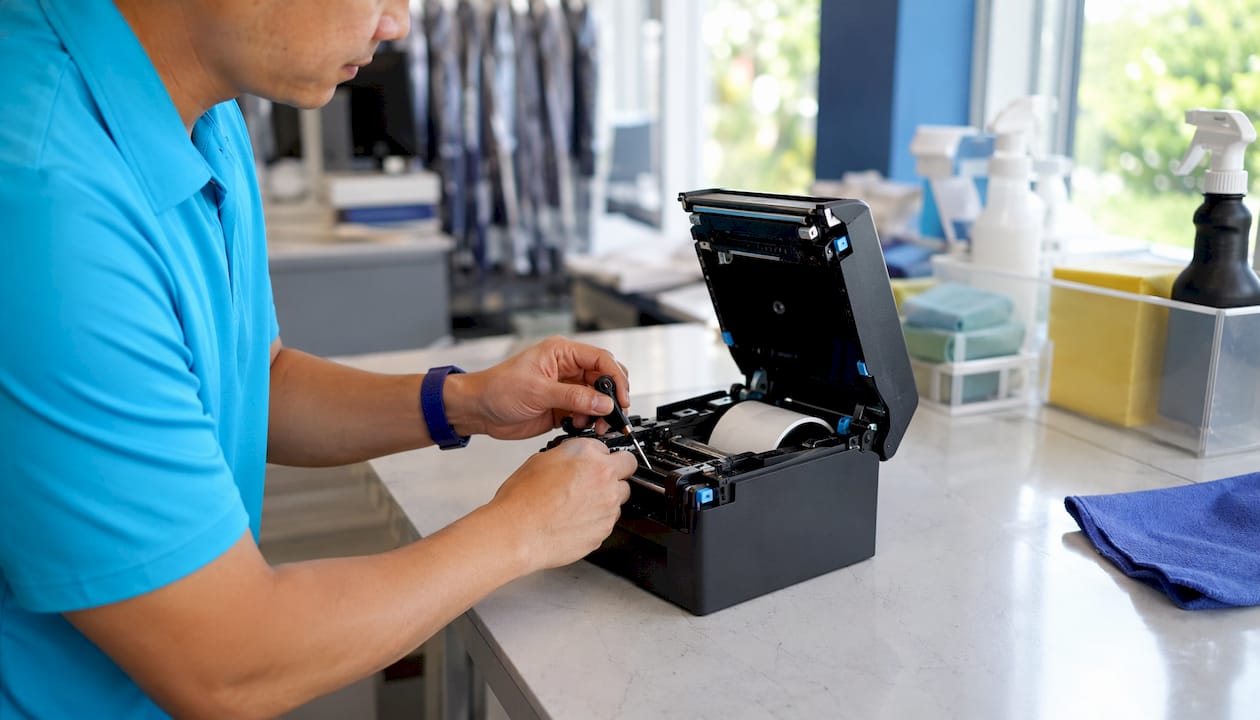
Standard thermal paper is the wrong choice for garment tags. Full stop. The right answer is Hydrofix, a boil-proof, wash-resistant, non-bleachable media manufactured specifically for dry cleaners and laundries. It comes in three weights: 80 g/m², 120 g/m², and 190 g/m². The heavier weights hold up through repeated wash and press cycles without tearing or curling. Color options let you sort orders visually at a glance — a practical detail that saves time on a busy pickup day.
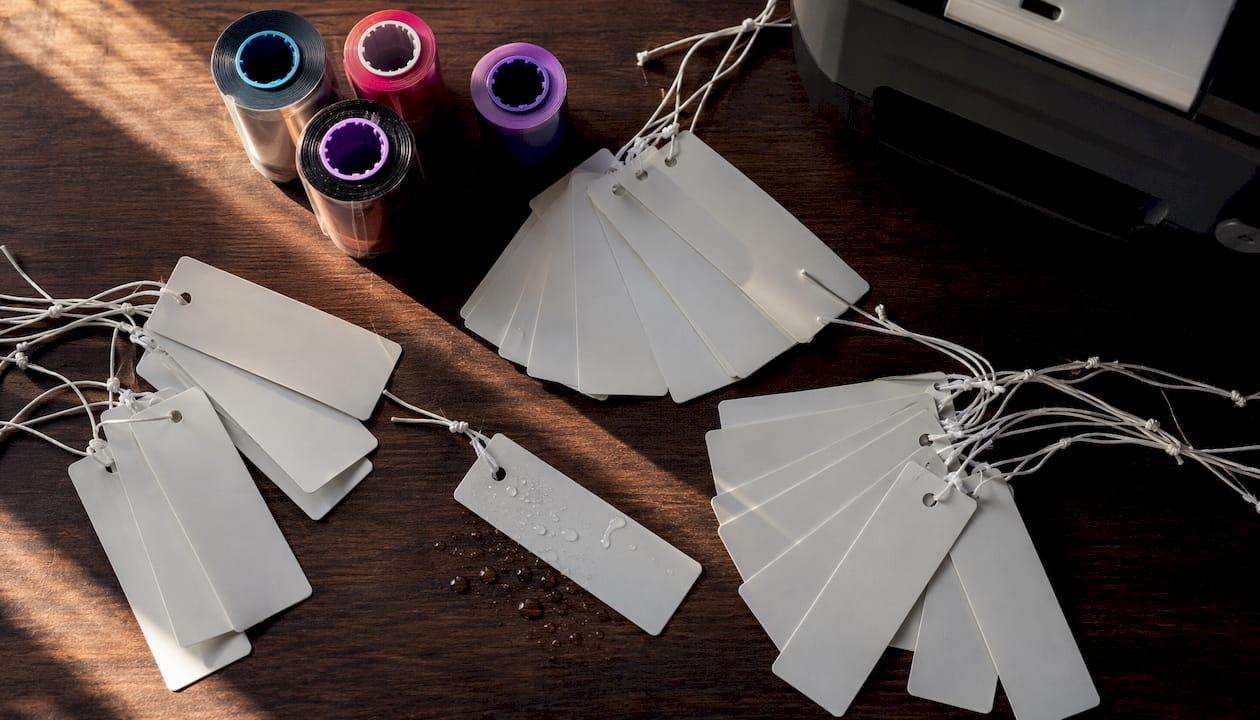
Hydrofix requires matching indelible ribbon cassettes to make prints permanent. The ribbon’s ink bonds to the media in a way that resists cleaning solvents and washing. Without the correct ribbon, even Hydrofix stock can produce prints that degrade over time. Always confirm the ribbon cassette specification with your media supplier before ordering.
For customer receipts at the counter, standard BPA-free thermal rolls (80 GSM, 3 1/8" wide) work well and are widely available from dry-cleaning supply houses like Cleaner’s Supply, which stocks receipt paper, nylon tag rolls, ink ribbons, and wet-strength tag rolls in one catalog.
Pro Tip: Keep at least two weeks of ribbon cassettes and tag stock on hand at all times. Specialty media has longer lead times than standard thermal paper, and running out mid-week means hand-writing tags — which is how garments get lost.
## Connectivity, drivers, and POS integration: what to check before you buy
Buying a printer without confirming driver support for your POS is the most common and most expensive mistake dry cleaners make. A printer that looks identical to a supported model can use a completely different command set or connector type. Verify model numbers, interface types, and cable requirements before any purchase.
Connectivity checklist — confirm every item with your vendor:
- USB: simple, plug-and-play, best for single-terminal counters where the printer never moves
- Ethernet (LAN): the right choice for multi-terminal shops; allows any station to print to a shared device and scales without adding USB hubs
- Bluetooth: useful for mobile or tablet-based POS setups; confirm pairing stability under your iOS or Android version
- Serial (RS-232): still present on some legacy impact printers; requires adapters and explicit driver support
- Wi-Fi: flexible for counter placement, but requires static IP assignment and stable coverage at the printer location, not just at the terminal
POS driver compatibility checklist:
- Ask your POS vendor for a tested and confirmed model list, not just a brand name
- Confirm OS compatibility (iOS, Windows, Linux) for your specific POS version
- Verify cash drawer kick support if you’re pairing a drawer with the receipt printer
- Check paper width acceptance: 80mm and 58mm are the two common standards; mixing them across locations creates consumables chaos
- For label printers, confirm linerless vs. die-cut label support and whether your POS can send the correct label format
Kansoflow integrates natively with Star Micronics hardware, which removes most of the driver guesswork for shops running that POS. For any other combination, request a written compatibility confirmation before signing a purchase order.
## Field-tested printer models and what each one is best for
These are the models that appear consistently in dry-cleaning POS hardware guides and vendor documentation. Each has a specific role.
- Star Micronics mC-Label2: A compact multifunction device that prints both customer receipts and barcodeable labels at 300 dpi, with linerless label support to reduce waste. Best for lower-volume shops that want one device handling both jobs. The tradeoff: linerless media can be harder to source locally, and the device costs more upfront than a dedicated receipt printer.
- Star Micronics impact tag printers (SP742 series): Built for production-area tag printing with indelible ink. Loud, but that’s the point — the mechanism drives ink into the media rather than relying on heat. Confirmed driver support for Kansoflow and most major dry-cleaning POS platforms. Use these where tags will face solvents, steam, or repeated handling.
- Epson TM-U210B: An impact receipt printer in the kitchen/production printer category. Two-color printing, serial and parallel interfaces, and solid durability ratings. Often used for order tickets that travel with garments through production. Not a label printer, but handles bond paper and multipart forms reliably.
- Bixolon SRP-275: A dot-matrix receipt printer with USB and serial connectivity, designed for environments where thermal paper won’t hold up. Produces durable receipts on plain or multipart paper. A practical choice when you need impact output but don’t require the full tag-printing capability of a dedicated label device.
Reminder: Confirm interface, driver, and media compatibility for your specific POS before ordering any of these. Model names alone don’t guarantee a working installation.
## How typical dry-cleaning shop setups actually work
Most shops run two distinct printer zones, and the workflow between them is where orders either stay organized or fall apart.
A standard two-zone setup looks like this:
- Front counter: Thermal receipt printer (USB or Ethernet) connected to the POS terminal. Prints customer receipts at drop-off and pickup. Fast, quiet, and customer-facing.
- Production area: Impact or label printer connected via Ethernet or USB to the same POS network. Prints garment tags on Hydrofix or wet-strength stock at drop-off, triggered automatically when the order is entered.
The tag travels with the garment through cleaning, pressing, and finishing. At pickup, the counter receipt matches the tag. That closed loop is what prevents lost-order disputes.
For very low-volume shops, the Star mC-Label2’s combined receipt and label capability can consolidate both functions into one device at the counter. The tradeoff is that the tag printer is now in the customer-facing area rather than the production floor, which means staff have to walk tags to garments rather than printing them at the point of use.
Placement and cabling tips:
- Keep production-area printers away from solvent storage and pressing equipment; heat and chemical vapor shorten mechanism life
- Use Ethernet for any printer shared across more than one terminal; USB printers are station-locked
- Route cables through conduit or cable trays in production areas to prevent damage from carts and equipment
- Standardize hardware across locations — same model, same interface, same media — so a technician or transferred staff member can troubleshoot without relearning the setup
## Maintenance and troubleshooting: keep printers running through peak season
Printer downtime during a busy week is a real operational problem. A ten-minute fix becomes a two-hour scramble if you don’t have spare consumables on site.
Weekly maintenance schedule:
- Clean thermal print heads with isopropyl alcohol and a lint-free swab; residue buildup is the leading cause of faded or streaked receipts
- Check ribbon seating on all impact and tag printers; a partially seated ribbon produces missing characters that look like a driver error
- Rotate paper and tag stock to use older rolls first; thermal paper degrades in storage, especially in warm or humid environments
- Inspect auto-cutters for paper debris; a jammed cutter is the most common source of “printer not responding” calls
- Log the current roll count or paper footage remaining on each device so you can reorder before running out
Quick troubleshooting checklist:
- Faded prints: Clean the print head first. If that doesn’t fix it, check media age and storage conditions. Thermal paper stored near heat sources degrades faster.
- Missing characters: On impact printers, reseat the ribbon cassette. If the problem persists, check driver version against your POS documentation.
- Connectivity failures: Swap to a known-good cable before touching software settings. USB cable failures account for a large share of “printer offline” issues that get misdiagnosed as driver problems.
- Label misfeeds: Confirm media type matches the printer’s mechanism setting (linerless vs. die-cut). A mismatch causes consistent misfeeds that look like hardware failure.
Pro Tip: Keep a one-page equipment log at each printer station: model, serial number, interface type, media spec, and the date of the last ribbon or paper roll change. When something breaks, that log cuts diagnosis time in half and speeds warranty claims.
## Buying checklist: questions to ask vendors before you commit
Run through this before any purchase. It takes fifteen minutes and prevents weeks of frustration.
Decision checklist:
- What is your expected daily print volume? High-volume shops need faster mechanisms and more durable auto-cutters.
- Do your garment tags need to survive solvents, washing, or high-heat pressing? If yes, Hydrofix or wet-strength stock with indelible ribbons is non-negotiable.
- Which connectivity type does your counter layout support? Ethernet for shared or multi-terminal; USB for single-station.
- Has your POS vendor confirmed driver support for the specific model number you’re buying?
- What are the consumables costs per month? Total cost of ownership includes ribbons, specialty media, and mechanism replacement, not just the sticker price.
- What is the vendor’s warranty and repair SLA? A next-business-day replacement matters more than a two-year warranty with a three-week turnaround.
- What is the mechanism life rating (lines printed or paper length)? Plan replacement or spare-part stocking around that figure.
Vendor questions to ask directly:
- “Do you support this model with Kansoflow or iOS-based POS systems?”
- “Can you supply indelible ribbon cassettes and Hydrofix tag stock in our required sizes?”
- “What are your lead times for replacement parts and consumables?”
- “Can you provide a tested compatibility list for our specific POS version?”
Red flags to walk away from:
- Vendor cannot confirm driver support in writing
- Vendor supplies media in sizes that don’t match your printer’s mechanism
- No tested compatibility list exists for your POS platform
- Repair SLA is longer than 48 hours for a production-critical device
Quick scoring rubric for comparing quotes:
| Criterion | Weight | What to look for |
|---|---|---|
| POS driver compatibility | High | Written confirmation, tested model list |
| Consumables cost and availability | High | Local stock, reasonable lead times |
| Durability for your environment | High | Mechanism life rating, chemical resistance |
| Warranty and repair SLA | Medium | Next-business-day replacement preferred |
| Initial purchase price | Low | Factor in TCO, not just unit cost |
## Why a confirmed POS and printer integration reduces real operational costs
A printer that works in isolation is only half the solution. The operational gains come from the printer and POS working together: the POS triggers a tag print at order entry, the tag carries a scannable barcode, and the system matches that barcode at pickup without manual lookup. That closed loop cuts reprints, reduces lost-order disputes, and speeds up the pickup counter.
Standardizing hardware across locations compounds those gains. When every location runs the same printer model on the same interface with the same media, a technician can swap a unit in minutes rather than diagnosing an unfamiliar setup. Staff who transfer between locations don’t need retraining on different equipment.
Integration benefits that show up in day-to-day operations:
- Automated tag printing at order entry eliminates manual handwriting and the errors that come with it
- Barcode-linked garment tracking reduces the time spent searching for orders at pickup
- Photo Intake at the counter (a Kansoflow feature) pairs with tag printing to document garment condition, cutting dispute resolution from minutes to seconds
- Inter-branch transfer support means a tag printed at a drop-off location travels with the garment to the processing hub and back, with the system tracking it the whole way
Before purchasing, request documented integration tests or a written compatibility list from your hardware vendor. A vendor who can’t produce that documentation is selling you a guess.
Key Takeaways
For dry-cleaning shops, the right printer setup pairs a fast thermal receipt printer at the counter with a solvent-resistant impact or label printer in production, using Hydrofix or wet-strength media with indelible ribbons for garment tags.
| Point | Details |
|---|---|
| Dual-printer approach | Use thermal at the counter for receipts and impact or label in production for durable garment tags. |
| Hydrofix and specialty media | Boil-proof, wash-resistant Hydrofix with indelible ribbons is required for tags that survive solvents and pressing. |
| Confirm POS driver support | Get written confirmation of driver compatibility for your specific model before purchasing any printer. |
| Standardize hardware | Same model, same interface, same media across all locations cuts training time and speeds repairs. |
| Kansoflow integration | Kansoflow natively pairs with Star Micronics printers, removing driver guesswork and connecting tag printing to the full order workflow. |
The part most buyers get wrong
The instinct to save money with a single thermal printer for everything is understandable. Thermal printers are cheap, quiet, and easy to set up. But the cost of that shortcut shows up six months later, when a tag fades mid-cycle and a customer’s $300 coat can’t be located. That’s not a printer problem at that point. It’s a dispute, a refund, and a lost customer.
What I’d push back on is the idea that this is a complex decision. It isn’t. The technology choice is straightforward once you accept that tags and receipts have completely different life cycles. A receipt lives in a wallet for a week. A tag lives on a garment through solvents, steam, and handling for days or weeks. Those two documents need different tools.
The place where operators genuinely get tripped up is consumables sourcing. Specialty media like Hydrofix and indelible ribbon cassettes aren’t available at the office supply store. If your vendor can’t supply them reliably, your setup will fail regardless of which printer you buy. Nail down the consumables supply chain before you finalize any hardware decision.
Standardize across locations from day one. The operational cost of running two different printer models in two locations, with two different media specs and two sets of spare parts, is far higher than the marginal savings on a cheaper unit at one store.
Kansoflow pairs with the printers your shop already needs
Running a dry-cleaning operation on paper tickets and mismatched hardware is a slow drain on your time and your margin. Kansoflow is built specifically for laundromat and dry-cleaning operators who want a POS that works with their physical workflow, not against it.

Kansoflow integrates natively with Star Micronics receipt and tag printers, which means the dual-printer setup this guide recommends is already supported out of the box. The visual Kanban board tracks every order through Wash, Fold, Dry Cleaning, and Ready stages. Photo Intake documents garment condition at drop-off, so disputes get resolved with a photo rather than a conversation. Inter-branch transfer support means tags printed at a drop-off location follow the garment to your processing hub and back, with the system tracking every step.
Check the hardware integration details on Kansoflow’s features page, or reach out directly to confirm compatibility with your specific printer model and media setup. The ask is simple: tell us what you’re running, and we’ll tell you whether it works.
Useful manufacturer and industry sources to consult before you buy
Before finalizing any purchase, pull the spec sheets directly from manufacturers and supply houses. Marketing pages won’t tell you mechanism life ratings or confirmed driver versions.
| Source | What to use it for |
|---|---|
| Star Micronics dry-cleaning solutions page | Model specs, indelible ink documentation, linerless label capability, and confirmed POS integrations |
| Hydrofix media specs (alpha-chem GmbH) | Boil-proof and wash-resistant media weights (80, 120, 190 g/m²), ribbon cassette compatibility |
| Cleaner’s Supply computer forms and register paper | US-based source for receipt paper, nylon tag rolls, ink ribbons, wet-strength tag rolls, and heat seals |
| Feature Buddies: thermal vs. impact comparison | Technology trade-offs, TCO considerations, and durability comparison for receipt printer selection |
| POSZEO receipt printer buyer guide | Connectivity options, driver compatibility checklist, and multi-location standardization guidance |
Ask every vendor for the mechanism life spec (lines printed or paper length), confirmed OS and driver versions, and a tested compatibility list for your POS platform. If they can’t produce those documents, treat that as a red flag and move to the next vendor.