Dry Cleaning POS Hardware Checklist for Laundromats
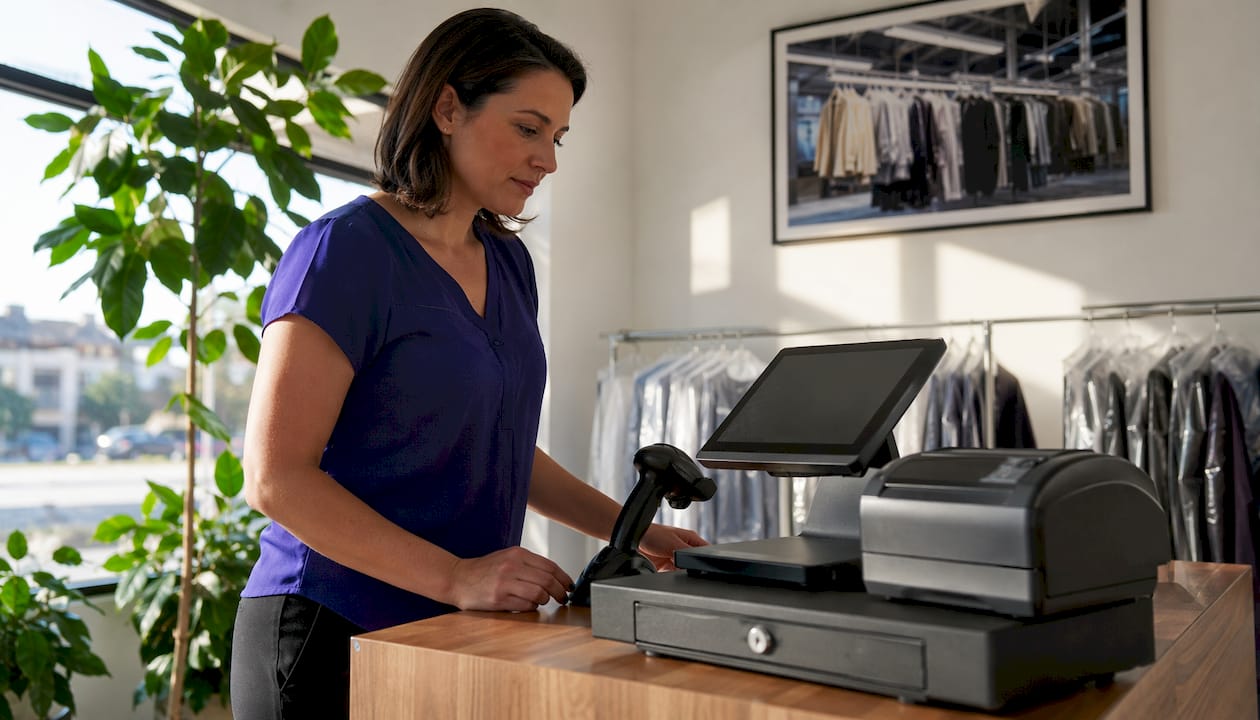
Your dry cleaning POS hardware checklist, in priority order: iPad or iOS terminal, Star Micronics SP742 impact garment tag printer, thermal receipt printer, 2D barcode scanner (Socket Mobile or Zebra), trade-legal Bluetooth or USB scale, EMV/contactless card reader, cash drawer, POS stand, UPS, and Ethernet cabling. Three actions to take right now: (1) confirm iOS driver support with your POS vendor before ordering anything, (2) prioritize the impact tag printer and 2D scanner above all other peripherals for dry cleaning workflows, and (3) schedule a live hardware test covering scan, print, weigh, and payment before full rollout.
- iPad or iOS terminal — Kansoflow runs natively on iOS; verify your iOS version meets the app’s minimum requirement
- Star Micronics SP742 impact tag printer — the only printer class that produces solvent-resistant garment tags that survive steam and pressing
- Thermal receipt printer — Star Micronics TSP143IV covers receipts and customer confirmations via USB-C, Ethernet, or CloudPRNT
- 2D barcode scanner — Socket Mobile or Zebra; 2D scanners handle QR codes and loyalty links that 1D scanners cannot
- Trade-legal scale — required when you charge by the pound; must feed weight directly into the POS
- EMV/contactless card reader — Stripe or Square, iOS-paired
- Cash drawer — Star Micronics commercial steel chassis, triggered via receipt printer cable
- POS stand or mount — counter-height, lockable
- UPS (uninterruptible power supply) — protects printers and terminals during power dips
- Ethernet switch and cabling — primary connectivity for high-volume stations
Table of Contents
- What does your dry cleaning POS hardware checklist actually need?
- What should you ask vendors before buying any hardware?
- Which hardware build fits your shop size?
- What does hardware cost, and how long does setup take?
- How do you keep hardware running in a dry cleaning environment?
- Key Takeaways
- The hardware choice nobody talks about honestly
- Kansoflow brings your hardware checklist to life on iOS
- Useful sources
What does your dry cleaning POS hardware checklist actually need?
Vendor-certified commercial hardware is the baseline for stable peripheral communication in any laundry or dry cleaning environment. Consumer-grade tablets and off-brand printers may work in a pinch, but they fail under the duty cycles a busy shop demands. Here is what each hardware class requires.
iPad or iOS terminal
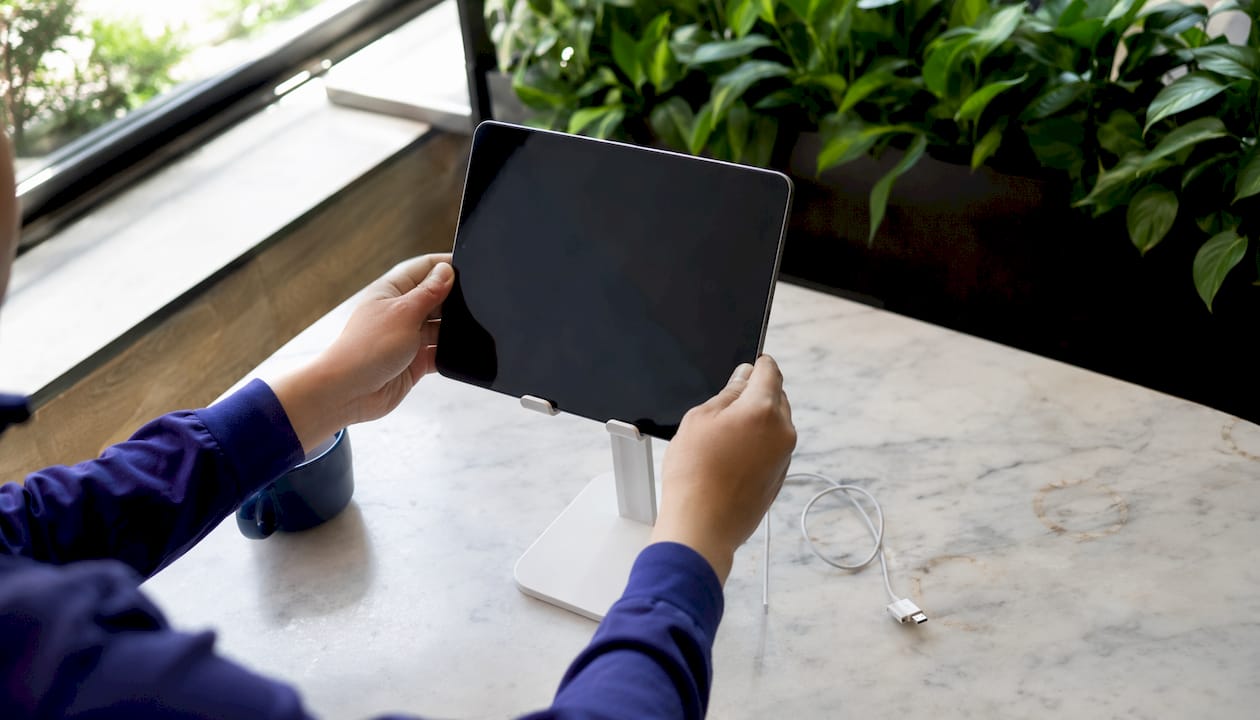
Kansoflow is iOS-native, so your terminal choice starts and ends with Apple hardware. An iPad (current generation, 64GB minimum storage, Wi-Fi + cellular or Ethernet adapter) paired with a commercial stand is the standard build. All-in-one Windows terminals are common in reseller bundles, but they require a browser-wrapped POS and lose the speed advantage of a native iOS app.
Impact garment tag printer
This is the single item most operators get wrong. Thermal printers are fine for receipts. They are not fine for garment tags. Heat, solvents, and pressing destroy thermal print within minutes of entering a dry cleaning plant. Impact dot-matrix printers produce indelible tags that survive the full cleaning cycle. The Star Micronics SP742 is the industry reference model: Ethernet, USB, or CloudPRNT connectivity, and a duty cycle rated for high-volume shops. Budget for spare ribbons and a backup print head.
Thermal receipt and label printers
Thermal is the right call for customer-facing receipts, order confirmations, and bag labels. The Star Micronics TSP143IV prints at high speed and supports USB-C, Ethernet, and CloudPRNT, which matters if you want cloud-triggered printing across multiple stations. For bag labels and branded order tags, a thermal transfer or linerless label printer at 203 dpi minimum adds a cleaner look without the cost of impact printing.
2D barcode scanner
A 1D scanner reads standard barcodes. A 2D scanner reads those plus QR codes, which opens customer-facing check-in, loyalty links, and photo-assisted intake workflows. Socket Mobile and Zebra both produce commercial-grade 2D scanners with Bluetooth and USB options. Mount a scanner at the counter for intake speed; keep a handheld unit for production-floor lookups.
Pro Tip: Ask your scanner vendor for the specific iOS SDK or driver documentation before you order. A scanner that pairs with Android or Windows but lacks an iOS-certified driver is useless on a Kansoflow setup.
Trade-legal scales
If you charge by the pound, trade-legal certification is mandatory — not optional. A non-certified scale creates pricing disputes and potential regulatory exposure. Choose a capacity that fits your operation: 60 lb for most wash-and-fold counters, up to 150 lb for high-volume plants. Bluetooth connectivity feeds weight directly into Kansoflow, eliminating manual entry errors.
Payment terminals, cash drawer, stand, UPS, and networking
EMV/contactless readers paired via Stripe or Square handle card and tap payments natively on iOS. The cash drawer connects through the receipt printer’s RJ-11 port — confirm cable compatibility before ordering. Ethernet provides more stable connectivity than Wi-Fi for high-volume stations; treat Wi-Fi as a fallback, not a primary connection. A UPS rated for your printer and terminal load protects against the brief power interruptions that corrupt print jobs and close open tickets.
| Hardware class | Connectivity | Commercial grade | iOS compatible |
|---|---|---|---|
| iPad / iOS terminal | Wi-Fi, Ethernet adapter | Yes (Apple commercial) | Native |
| Impact tag printer (SP742) | Ethernet, USB, CloudPRNT | Yes, high duty cycle | Driver required |
| Thermal receipt printer (TSP143IV) | USB-C, Ethernet, CloudPRNT | Yes | Driver required |
| 2D barcode scanner | USB, Bluetooth | Yes (Socket Mobile, Zebra) | iOS SDK required |
| Trade-legal scale | Bluetooth, USB | Yes (NTEP certified) | iOS SDK required |
| EMV/contactless reader | Bluetooth, USB | Yes (Stripe, Square) | Native iOS pairing |
| Cash drawer | RJ-11 via printer | Commercial steel | Via printer trigger |
| UPS | AC outlet | Commercial rated | N/A |
What should you ask vendors before buying any hardware?
Choose your POS based on workflow needs, not on what self-service equipment you already own. The same logic applies to hardware: buy what your POS vendor certifies, not what a reseller bundles by default.
Vendor questions to ask before any purchase:
- Does this device have an iOS driver or SDK, and where is the documentation?
- Is this model on your certified hardware list for impact garment tag printing?
- Does your 2D scanner support Socket Mobile or Zebra iOS SDKs specifically?
- What API endpoints or webhooks does your POS expose for reporting sync with self-service payment equipment?
- What is your warranty coverage for high duty-cycle printers, and what is your mean time to repair or replace?
Red flags to walk away from:
- A vendor who says “works on Windows” without confirming iOS support
- A reseller recommending thermal-only printers for garment tags in a dry cleaning environment
- No documented warranty for impact printers running more than eight hours daily
- Proprietary cable or connector requirements with no standard alternative
What to request during procurement:
- A written hardware compatibility statement from your POS vendor
- A 30–90 minute live test covering scan, print, weigh, and payment before you sign off
- A documented fallback plan: what happens if the tag printer fails mid-shift?
Pro Tip: Request the driver download page URL and the SDK version number in writing. If the vendor cannot provide both within 24 hours, treat that as a compatibility risk.
Which hardware build fits your shop size?
| Shop profile | Daily tickets | Core hardware | Connectivity | Procurement approach |
|---|---|---|---|---|
| Small (1 operator) | Under 30 | 1 iPad, SP742, TSP143IV, 1D/2D scanner, 60 lb scale, card reader, cash drawer | Wi-Fi acceptable | Buy new; 1-year warranty minimum |
| Medium (multi-staff) | 30 | 2 iPads, SP742, TSP143IV, 2D scanner (mounted + handheld), 60 lb scale, 2 card readers | Ethernet preferred | Buy new commercial; 3-year warranty |
| High-volume / multi-location | 50+ | 3+ iPads, 2× SP742, TSP143IV, multiple 2D scanners, 150 lb scale, multiple card readers, spare printer | Ethernet required | Commercial new; extended warranty + SLA |
Small shops can run Wi-Fi without major risk, but medium and high-volume operations should run Ethernet to every printer and terminal. A spare impact printer ribbon and a backup scanner are worth the cost at any volume above 50 tickets per day.
What does hardware cost, and how long does setup take?
Hardware costs vary by shop size, with small setups being the least expensive and high-volume operations requiring more costly, comprehensive hardware bundles.
These ranges reflect commercial-grade components. Consumer alternatives cost less upfront and fail faster under production loads.
Procurement timeline:
- Request vendor compatibility statement and certified hardware list (Days 1–3)
- Order hardware from authorized resellers; confirm firmware and driver versions before shipping (Days 4–10)
- Run a pilot day: scan every barcode format, print tags and receipts, weigh test loads, process a payment (Day 11–14)
- Full rollout with staff training; keep a spare ribbon and scanner on hand (Day 15+)
Order from authorized resellers, not marketplace third parties. Firmware mismatches between a printer and a POS driver are the most common cause of failed pilots.
How do you keep hardware running in a dry cleaning environment?
Dry cleaning shops are hard on hardware. Steam, solvent fumes, and lint accumulate fast.
Daily checks:
- Wipe scanner glass with a dry cloth; check for lint buildup around the scan window
- Confirm ribbon tension on the SP742 before the first print run
- Verify Ethernet cables are seated; check the UPS charge indicator
Weekly maintenance:
- Clean printer heads with manufacturer-approved solution
- Check label and ribbon stock; reorder before you hit the last roll
- Run a firmware check on all devices; apply updates during off-hours
Environmental protections:
- Mount printers and terminals at least three feet from steam press zones
- Use dust covers on scanners and printers when the counter is closed
- Keep ambient temperature between 50°F and 95°F for most commercial hardware
Device-level security:
- Enable Kansoflow’s per-device PIN so staff can lock or switch users in seconds
- Segment POS devices on a separate VLAN from customer Wi-Fi
- Lock cash drawers to the receipt printer trigger; never leave them open between transactions
Troubleshooting flow:
- Check Ethernet connection first; reseat the cable before assuming a driver issue
- Verify driver and firmware versions match the POS vendor’s certified list
- Run a printer head cleaning cycle from the printer’s control panel
- If the issue persists, escalate to vendor support with your SLA documentation in hand
Key Takeaways
A complete dry cleaning POS hardware setup requires iOS-certified peripherals, an impact tag printer, a 2D scanner, and a trade-legal scale — verified by your POS vendor before purchase.
| Point | Details |
|---|---|
| Impact printer is non-negotiable | Thermal tags fail in dry cleaning; the Star Micronics SP742 is the industry-standard impact tag printer. |
| 2D scanners pay for themselves | Socket Mobile and Zebra 2D scanners handle QR codes and speed intake beyond what 1D units can do. |
| Trade-legal scales protect revenue | NTEP-certified scales with direct POS integration eliminate manual entry errors and pricing disputes. |
| Ethernet first, Wi-Fi second | High-volume stations need wired Ethernet to printers and terminals; Wi-Fi is a fallback only. |
| Kansoflow as your iOS-native hub | Kansoflow pairs natively with Star Micronics printers, Bluetooth scales, and Socket Mobile scanners for a certified, low-training setup. |
The hardware choice nobody talks about honestly
Most articles on dry cleaning POS hardware list the same components and stop there. What they skip is the order of operations: operators buy the terminal first, then discover their tag printer has no iOS driver, then spend two weeks chasing a reseller for a firmware fix.
The real decision is not which printer to buy. It is which POS platform to commit to first, then build the hardware list backward from its certified compatibility matrix. An iOS-native platform like Kansoflow narrows your hardware choices in a useful way: it eliminates the Windows-only peripherals that look cheaper but require a browser-wrapped workaround that slows every transaction.
Photo intake and 2D scanning are not premium add-ons. They are the operational foundation that prevents garment disputes, speeds check-in, and gives you a paper trail when a customer claims a missing item. Shops that skip these two items because they seem expensive tend to spend far more on rework and refunds within the first year.
Buy the impact printer. Verify the iOS driver. Test everything before you open.
Kansoflow brings your hardware checklist to life on iOS
Kansoflow is the iOS-native POS built specifically for laundromats and dry cleaners. It pairs directly with Star Micronics receipt and tag printers, Socket Mobile and Zebra 2D scanners, and Bluetooth trade-legal scales, so the hardware you just spec’d connects without a browser wrapper or a Windows workaround.
The Kanban order board tracks every garment from intake to ready, photo intake captures condition at drop-off, and per-device PIN security lets staff lock and switch in seconds on a busy counter. Every hardware integration is tested and documented, which cuts training time and eliminates the compatibility guesswork that stalls most hardware rollouts.
See the full hardware integration list and request a demo to walk through a live scan, print, and payment test with your specific hardware list.
Useful sources
Validate specs, download drivers, and buy from authorized resellers using these resources:
- Star Micronics SP742 documentation and dry cleaning resources: starmicronics.com/dry-cleaning-pos-solutions — driver downloads, CloudPRNT setup guides, and ribbon part numbers for the SP742 impact tag printer
- Star Micronics TSP143IV receipt printer: available through Star Micronics authorized resellers; request the iOS driver package and CloudPRNT configuration guide before ordering
- Socket Mobile scanner SDK: socket.com — download the iOS SDK documentation and confirm the version your POS vendor certifies before procurement
- Zebra scanner support: zebra.com/us/en/support-downloads — driver pages, iOS SDK documentation, and firmware update files for Zebra 2D scanners
- Trade-legal scale certification: NTEP (National Type Evaluation Program) certificates are issued by the National Conference on Weights and Measures (ncwm.net); request the NTEP certificate number from your scale vendor before purchase
- Reseller bundle reference: ShopPOSPortal dry cleaner bundle — illustrates typical commercial bundle composition including SP742, TSP143IV, Honeywell scanner, and cash drawer with warranty terms
- POS and self-service integration guidance: laundrycard.com — explains why full-service POS and self-service payment equipment are separate decisions and how API integration unifies reporting
When ordering from any reseller, request a written compatibility statement, confirm firmware versions match your POS vendor’s certified list, and ask for the warranty duration and onsite repair SLA in writing before you sign.